Website setup

Themes
Dark
Copyright
Copyright © 2026, Layten, All Rights Reserved
Copyright © 2026, Layten, All Rights Reserved
A simple step-by-step guide to downloading Minecraft and getting the launcher ready to play.
Whether you already own Minecraft or you're looking to purchase it for the first time, this guide will show you where to download the official Minecraft Launcher and how to get started.
If you already own Minecraft, you can download the official Minecraft Launcher directly from the Minecraft website.
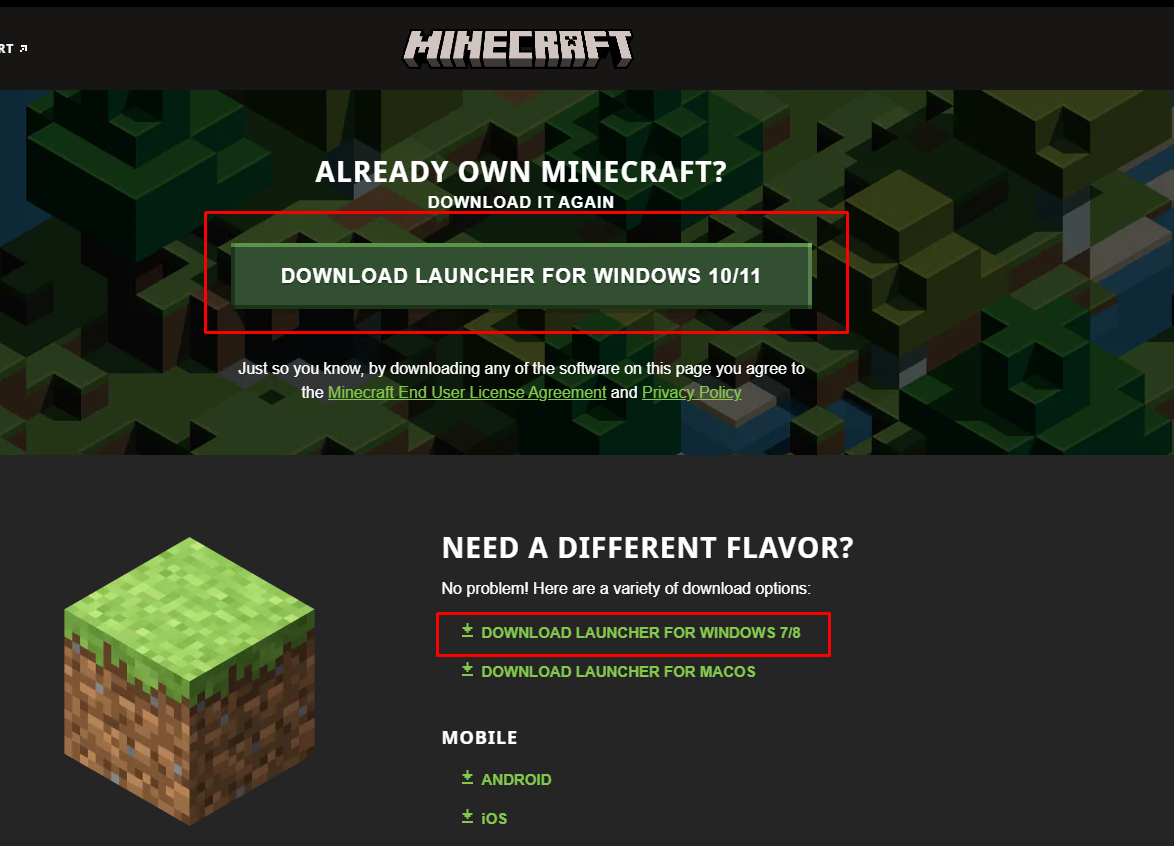
Already own Minecraft? Use the official Minecraft download page to download the launcher for your operating system.
If you don't own Minecraft yet, you can purchase the Java & Bedrock Edition for PC through the official Minecraft store.
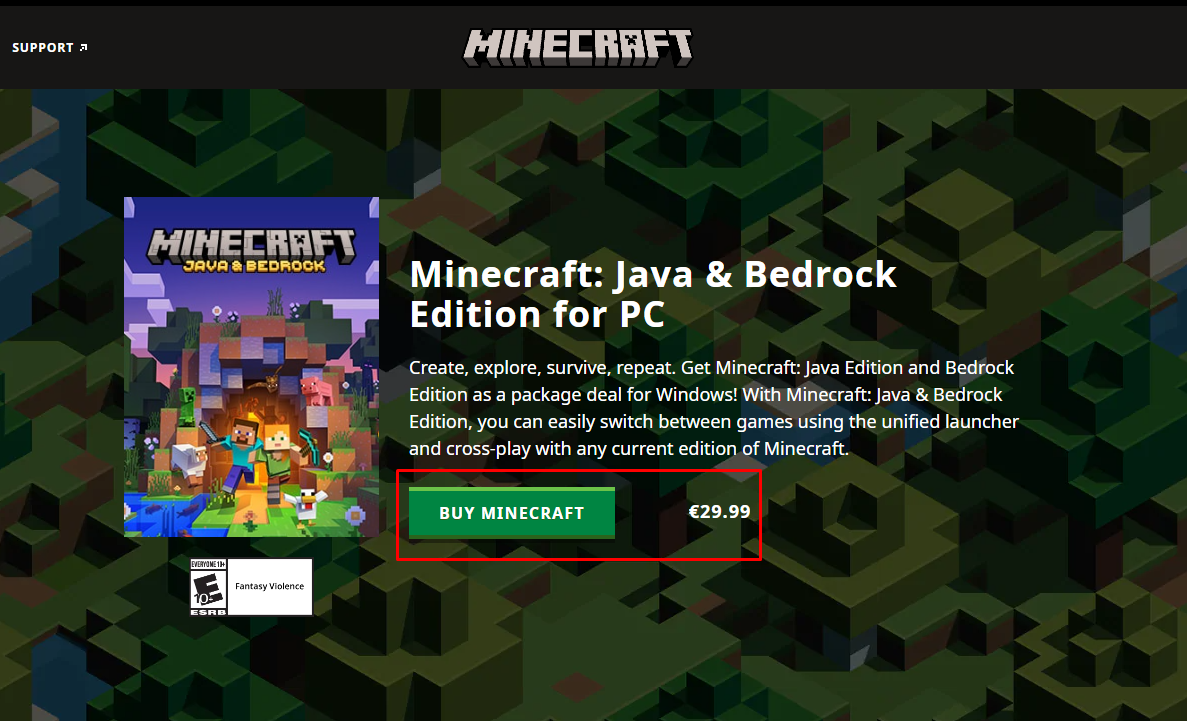
Important: Make sure you are purchasing Minecraft through an official Minecraft or Microsoft store page.
Once you have installed the Minecraft Launcher, open it and sign in with the Microsoft account associated with your Minecraft purchase.
From the launcher you can select the Minecraft edition you want to play and install the required game files.
Tip: Keep your Minecraft Launcher updated to ensure you have access to the latest versions and features.
There are also third-party Minecraft launchers that can be useful for managing different Minecraft installations, versions and modded instances.
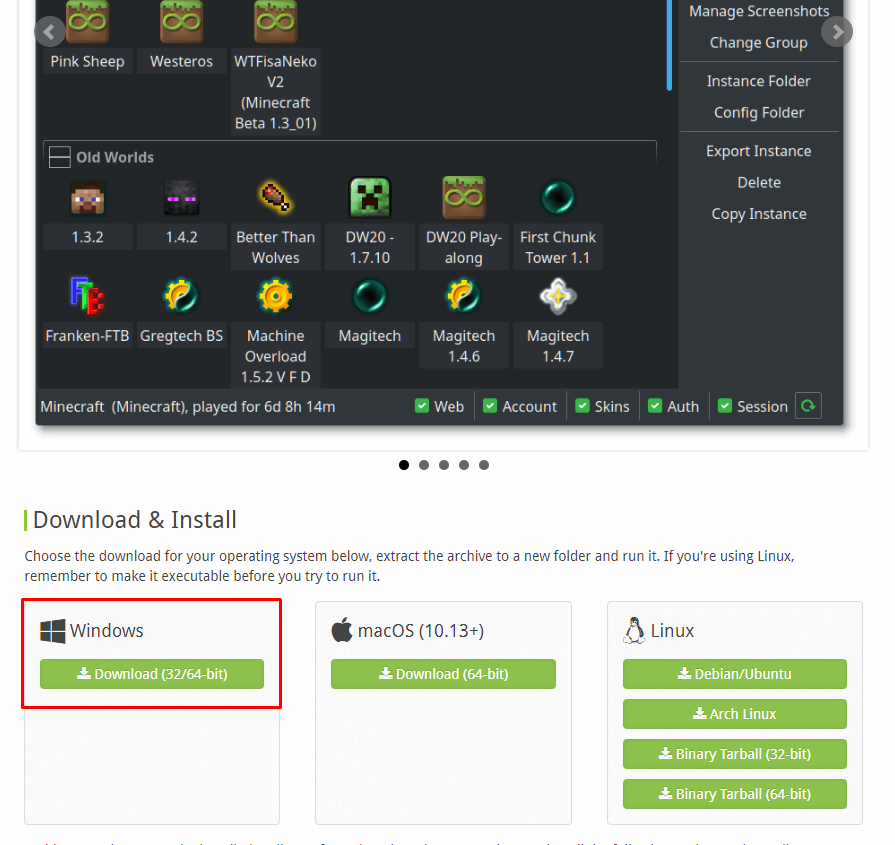
⚠ Important: Third-party launchers do not automatically provide a free Minecraft license. You should own Minecraft and use launchers in accordance with their terms and Minecraft's licensing requirements.
The safest way to download Minecraft is through the official Minecraft website.
Visit Minecraft.net →Once Minecraft is installed, you can start building your world, explore new adventures and even create your own Minecraft server.
Explore Layten Hosting →