Website setup

Themes
Dark
Copyright
Copyright © 2026, Layten, All Rights Reserved
Copyright © 2026, Layten, All Rights Reserved
Customize your Minecraft character and give your server adventures your own unique style.
Changing your Minecraft skin is a quick and easy way to personalize your character. Follow the guide below to learn how to change your skin on Java Edition, Bedrock Edition, and Minecraft PE.
Follow these steps to change your skin using the Minecraft Launcher.
Open the Minecraft Launcher and select Skins from the top menu.
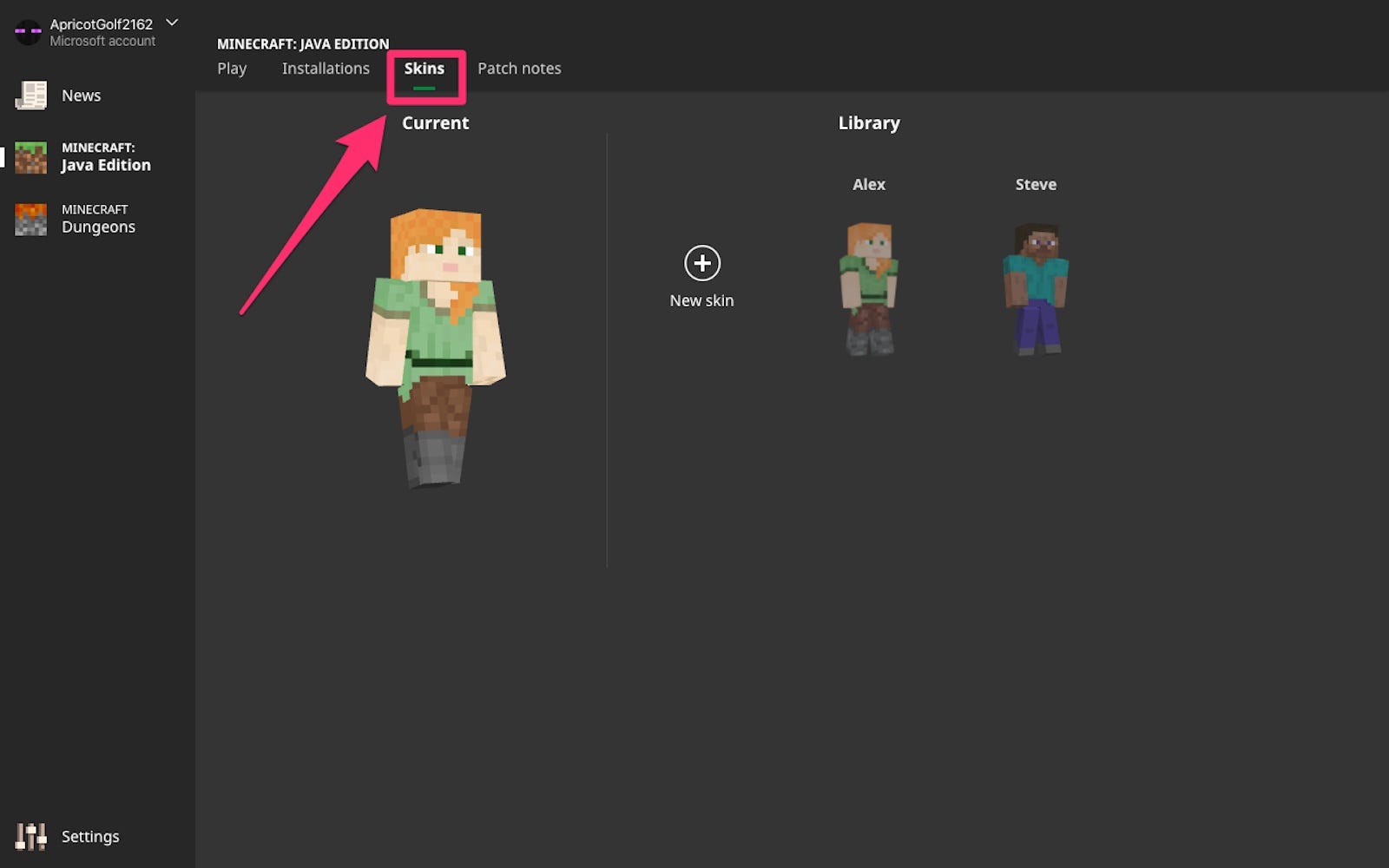
Click New skin to add a new skin to your Minecraft Launcher.
Tip: Make sure your skin file is in PNG format before uploading it.
On the "Add new skin" page, select Browse. Find and select your skin image, making sure it has the correct dimensions and PNG format, then click Open.
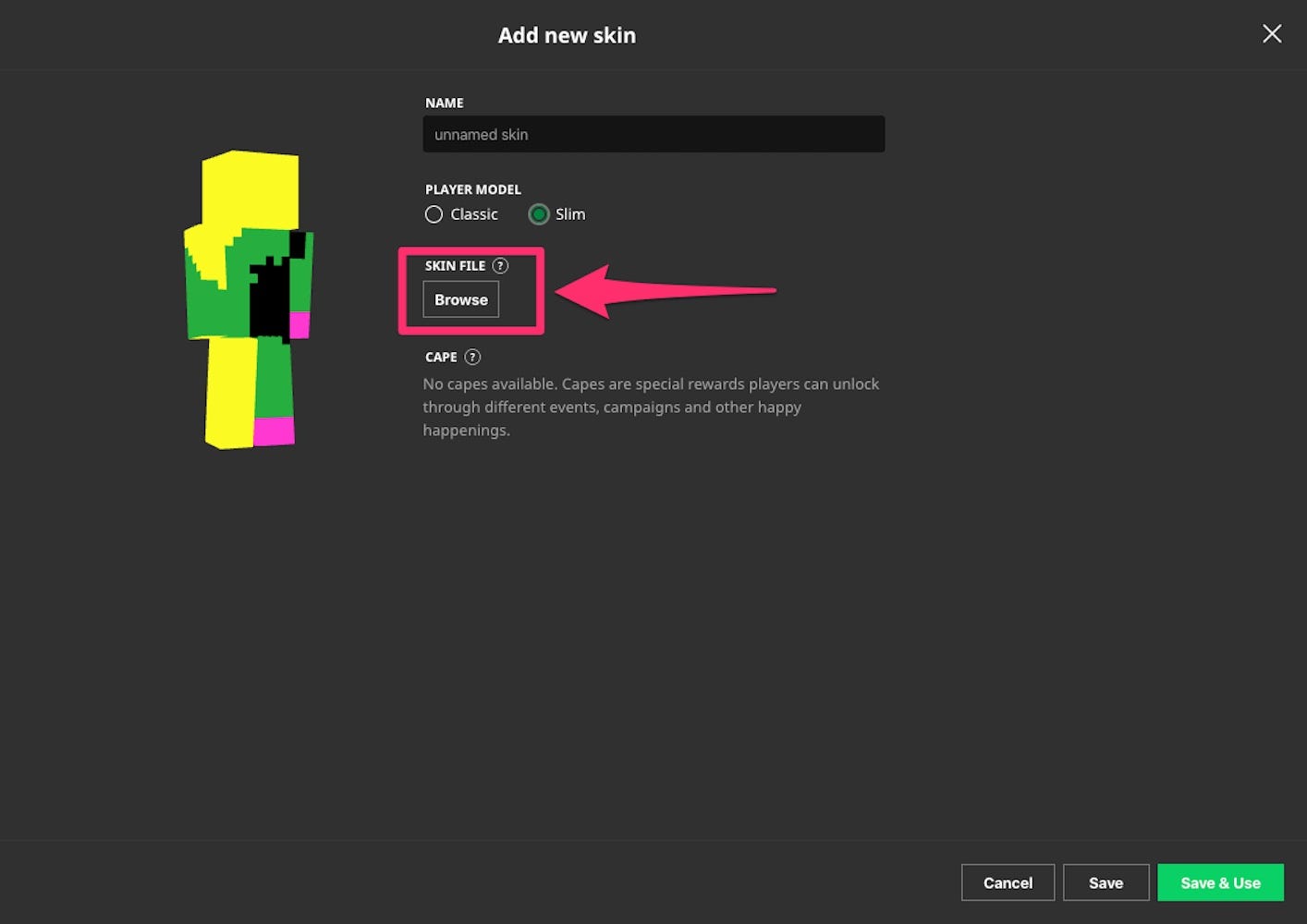
Give your skin a name if you'd like, then choose either Classic or Slim depending on the model you want to use.
Finally, click Save & Use in the bottom-right corner.
Done! When you launch Minecraft, your character will be wearing your new skin.
Customize your character using the Bedrock Dressing Room.
Similar to Java Edition, you can upload a skin you've downloaded from the internet or one you've created yourself for your Bedrock character model.
There are many creative Minecraft skins available, giving you plenty of options for customizing your character.
Important: Importing custom skins is available on PC. Console versions may have different restrictions.
Launch Minecraft Bedrock Edition and click Dressing Room below your character model on the right side of the screen.
Scroll through the available characters and click Edit Character under one of your existing models.
Alternatively, select an empty slot and click Create Character.
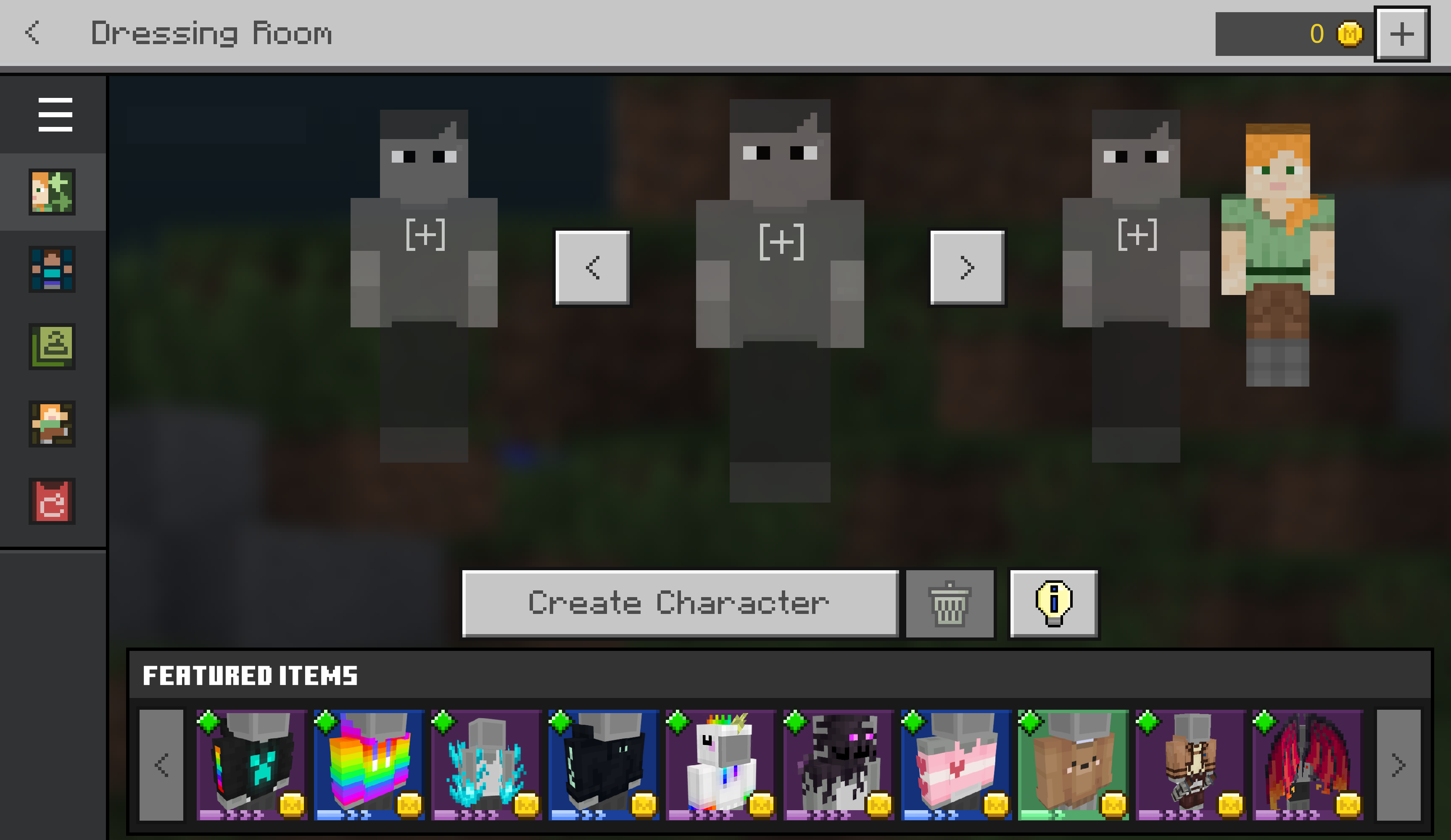
Using the icons in the left sidebar, you'll find several customization options.
When you're finished, click the Dressing Room icon in the top-left corner.
Your changes are saved. You can now start playing Minecraft with your new character.
Change your Minecraft skin directly from your mobile device.
On your mobile device, download the Minecraft skin you want to use from a skin website.
Open the Minecraft app and tap the Dressing Room button.
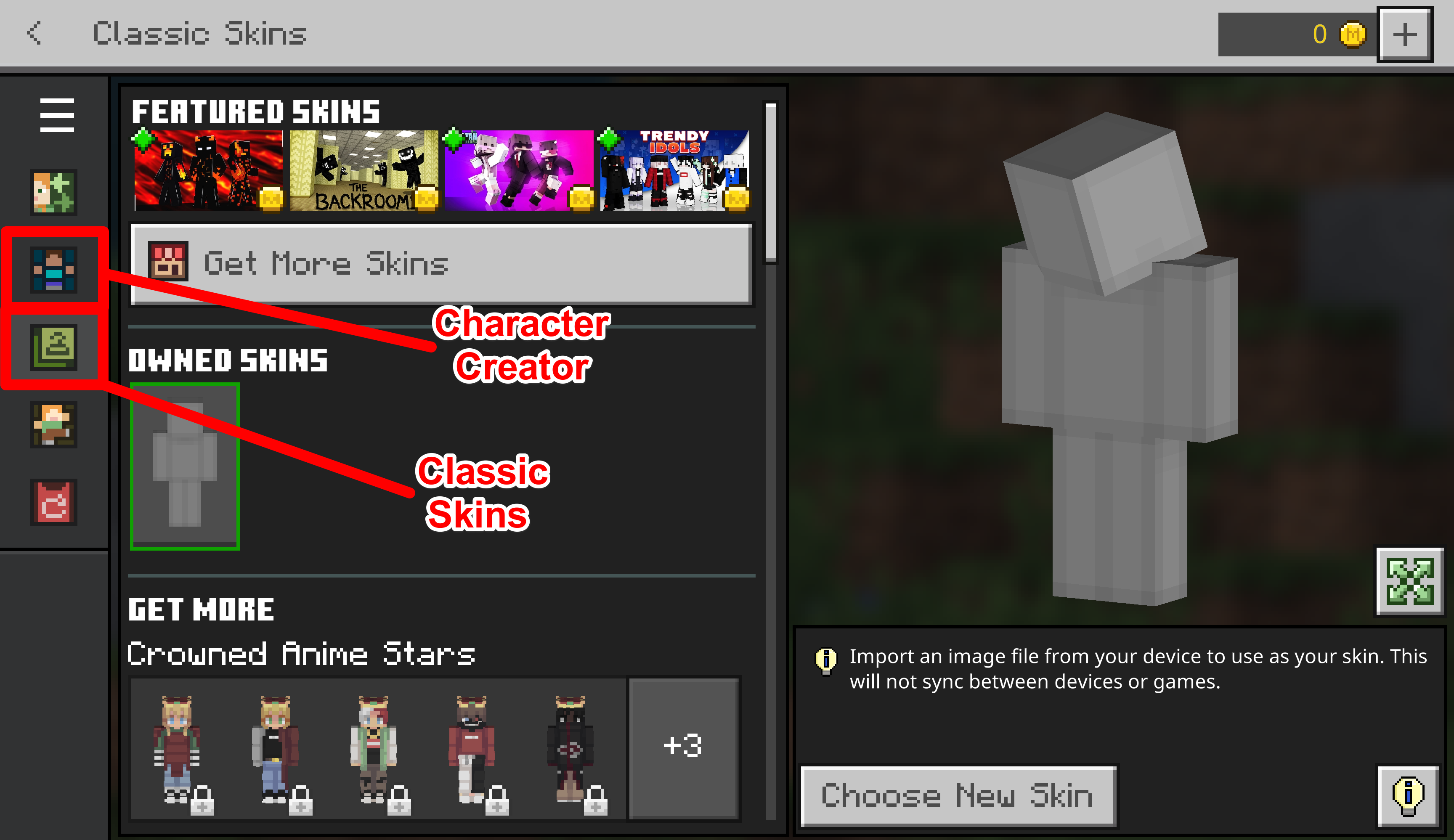
Tap the three horizontal bars in the top-left corner of your screen and select Classic Skins.
Tap Owned and then select the gray skin from the dropdown menu.
Select Choose new skin and select the image you downloaded earlier.
That's it! Your new Minecraft skin is now ready to use.
Give your character a unique look and enjoy your Minecraft adventures with your own custom skin.
Explore Layten Hosting →